Calendar
The Calendar provides a quick view of upcoming Appointments.
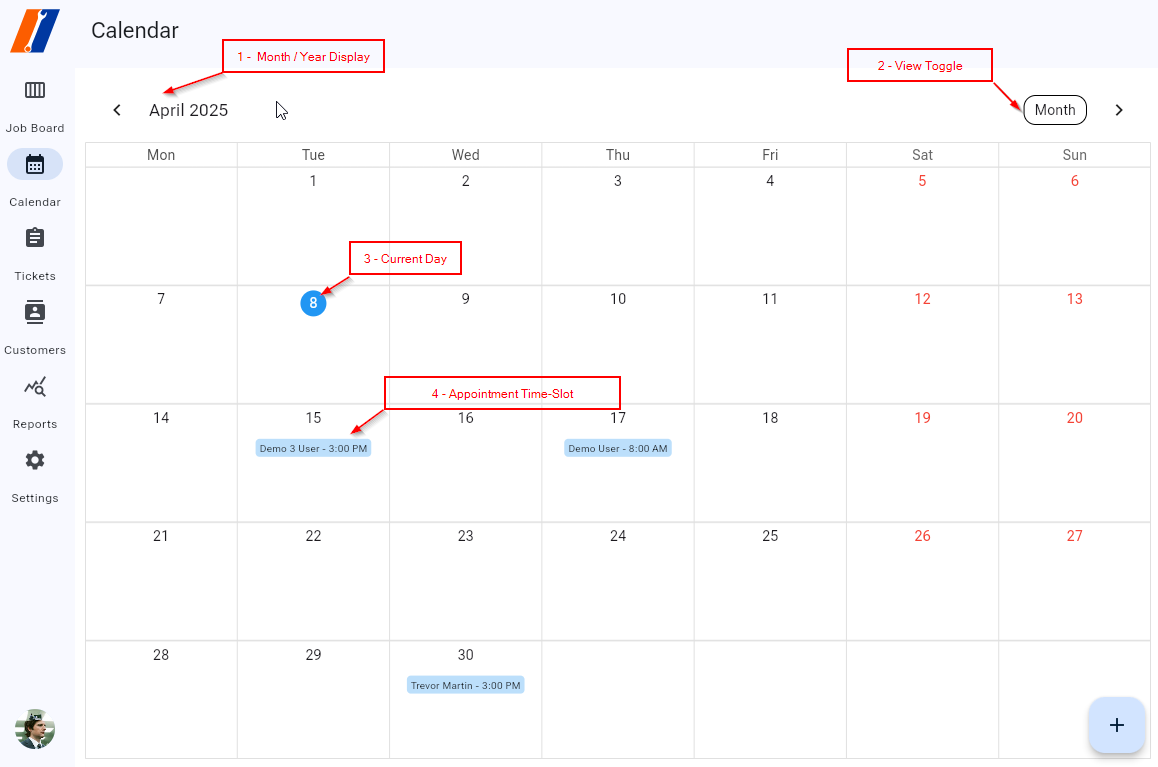
1 - Month/Year Display: Displays the currently selected Month/Year.
2 - View Toggle: Allows you to change the view of the Calendar. The default view is ‘Month’, but you can toggle to ‘2 Weeks’ or ‘Week’ also.
3 - Current Day: The current day is always highlighted on all views, for easy reference.
4 - Appointment Time-Slot: Any appointments show on the calendar in their appropriate day/time slot represented with a bar, similar to what you would see in many popular Calendar apps.
Adding a Drop Off Appointment
On any Ticket, you can add a ‘Scheduled Drop-off Time’, which will add the ticket to your Calendar.
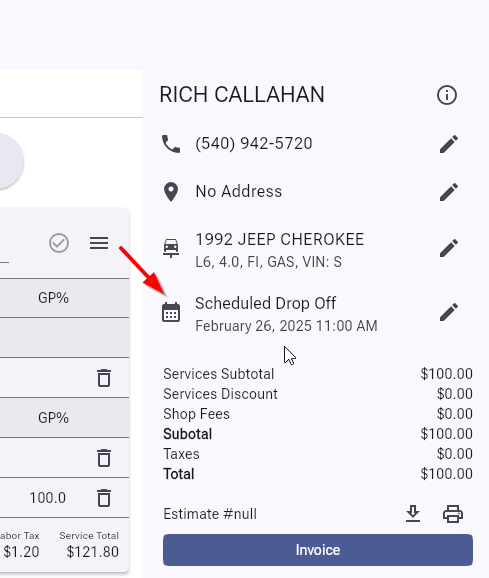
Open a Ticket
Add a Scheduled Drop Off: Do this by clicking the Edit button next to ‘Scheduled Drop Off’ on the right inside the Customer panel.

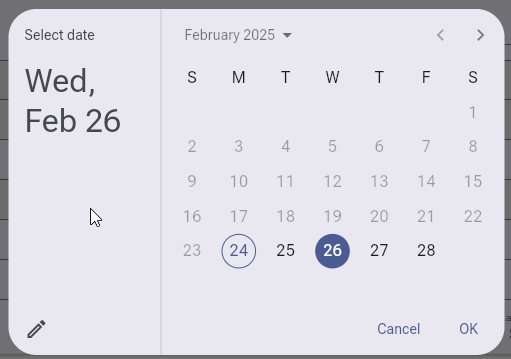
Use the dialogue box that pops up, to choose/enter a date and time for the customers drop off.
Editing an Appointment
Select Appointment: Click on the appointment you wish to edit. This will bring up the Ticket for this time-slot.
Edit Details: Once the Ticket Details page is open, you can click follow the aove steps to select a new date/time and reschedule this Drop Off.