Services Settings

The Services Settings page allows you to create and manage service templates that can be quickly added to repair orders.

Overview

Service templates streamline repair order creation by:

  • Pre-defining common services with all required items

  • Standardizing pricing and labor times

  • Categorizing services by type

  • Managing service availability with active/inactive states

Key Features

Service Templates

Service Properties
  • Service name and description

  • Service type (Service or Diagnostic)

  • Active/inactive status

  • Associated service items

  • Location-specific or global availability

Service Types
  • Service: Regular maintenance and repair work (Indigo badge)

  • Diagnostic: Diagnostic and inspection services (Amber badge)

Service Items

Each service can include multiple items:

Item Types
  • Labor (Blue) - Technician work time

  • Part (Orange) - Physical components

  • Fluid (Teal) - Oils, coolants, fluids

  • Fee (Green) - Service charges

  • Tax (Red) - Applicable taxes

  • Sublet (Purple) - Outsourced work

Item Properties
  • Name and description

  • Quantity

  • Price (customer charge)

  • Cost (shop cost)

  • SKU for inventory tracking

  • Source information for parts

  • Sort order for display

Interface Features

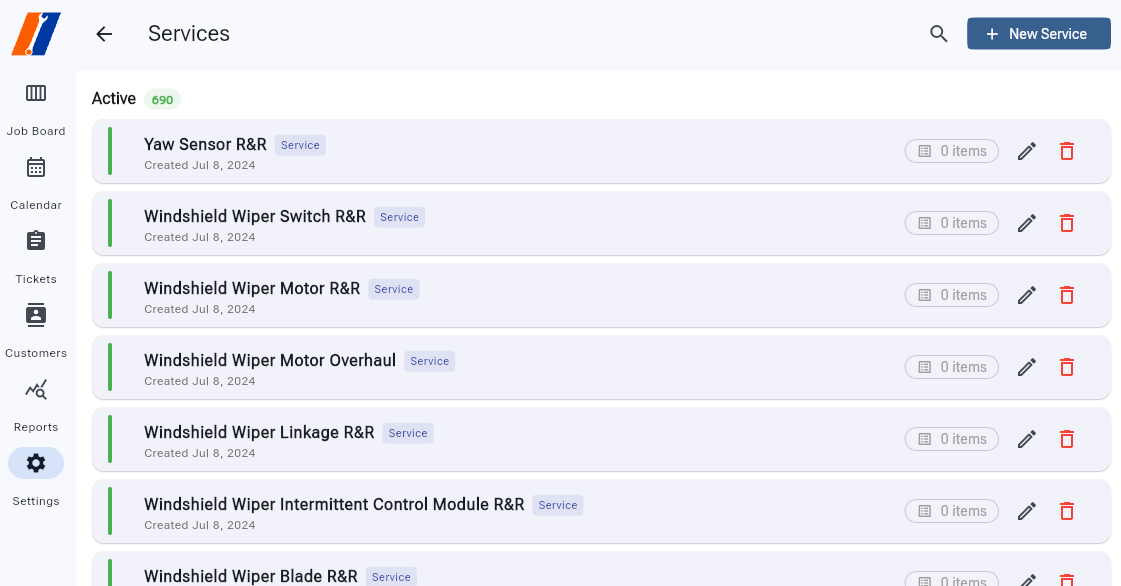
Service Cards
  • Visual status indicator (green for active, grey for inactive)

  • Service name with type badge

  • Item count with visual distinction (highlighted when configured)

  • Creation date for reference

  • Quick action buttons

Search and Filter
  • Search by service name or type

  • Active/inactive sections

  • Result count indicators

  • One-click search clearing

How to Use

Creating a New Service

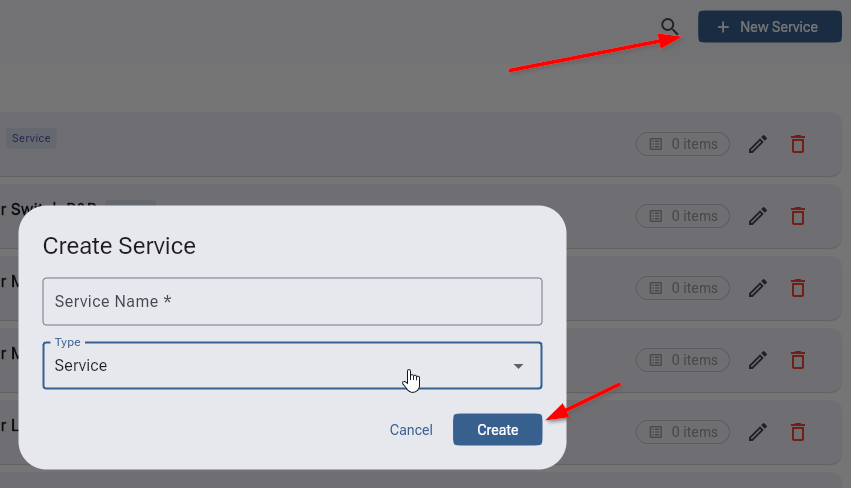
  1. Click New Service button in the app bar

  2. Enter service information:

    • Service Name (required)

    • Type (Service or Diagnostic)

  3. Click Create to save the service

  4. Click on the service card to add items

Adding Service Items

  1. Click on a service card or the items button

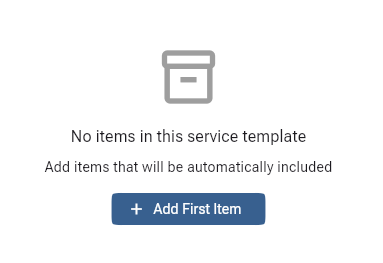
  2. Click Add Item in the items page

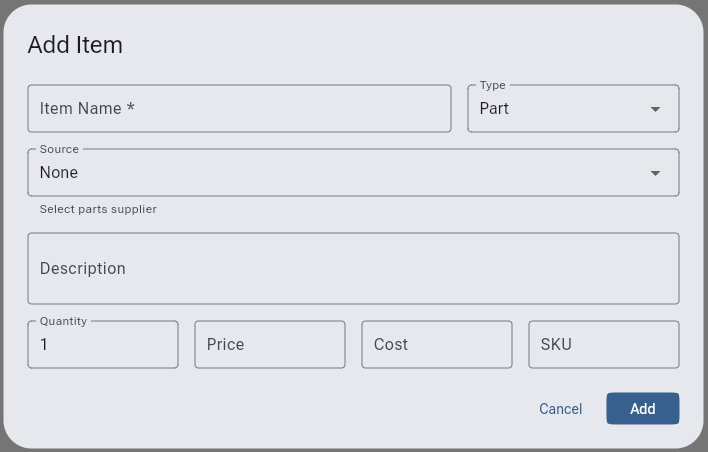
  3. Configure the item:

    • Name (required)

    • Type (Part, Labor, Fluid, etc.)

    • Description (optional)

    • Quantity

    • Price and Cost

    • SKU for inventory

    • Source for parts

  4. Click Add to save the item

Managing Service Items

Editing Items
  1. Navigate to the service items page

  2. Click the edit icon on any item

  3. Update the necessary fields

  4. Click Update to save

Reordering Items
  • Drag and drop items to reorder

  • Order determines display on repair orders

  • Changes save automatically

Deleting Items
  • Click the delete icon

  • Confirm deletion in dialog

  • Cannot be undone

Service Management

Activating/Deactivating Services
  1. Edit the service

  2. Toggle the Active switch

  3. Inactive services won’t appear in repair order selection

Editing Services
  1. Click the edit icon on the service card

  2. Update name or type

  3. Toggle active status if needed

  4. Click Update to save

Deleting Services
  1. Click the delete icon

  2. Confirm in the dialog

  3. Note: Cannot delete services used in existing repair orders

Best Practices

Service Template Design

  • Comprehensive Items: Include all parts, labor, and fluids

  • Accurate Pricing: Keep prices current with costs

  • Clear Naming: Use descriptive, searchable names

  • Logical Grouping: Organize related services together

  • Version Control: Create new services for major changes

Item Configuration

Labor Items
  • Use standard time units (0.5 hours, 1.0 hours)

  • Include setup and cleanup time

  • Document specific tasks in description

Parts Items
  • Include manufacturer part numbers in SKU

  • Specify OEM vs aftermarket in description

  • Track supplier in source field

Fluid Items
  • Specify exact quantities

  • Include disposal fees if applicable

  • Note specifications in description

Pricing Strategy

  • Consistent Markup: Apply standard markup to costs

  • Bundle Pricing: Consider package deals for common services

  • Regular Reviews: Update prices quarterly

  • Competitive Analysis: Research market rates

Organization Tips

  • Naming Convention: “System - Service Type - Specifics”

    • Example: “Brakes - Front - Pad Replacement”

    • Example: “Engine - Diagnostic - Check Engine Light”

  • Active Management: Deactivate seasonal services

  • Item Order: Place most important items first

  • Description Usage: Add notes for technicians

Performance Optimization

The system uses efficient querying:

  • Single query fetches all services with item counts

  • Instant search filtering

  • Optimized for hundreds of services

  • Fast item management

Tips and Tricks

  • Quick Navigation: Click anywhere on card to view items

  • Bulk Item Entry: Add all items before saving

  • Template Copying: Use existing service as starting point

  • Search Shortcuts: Search by type for quick filtering

  • Visual Cues: Services with items show highlighted button

Troubleshooting

Common Issues

Service Not Appearing in Repair Orders
  • Verify service is active

  • Check location assignment

  • Refresh repair order page

  • Clear browser cache

Item Prices Not Calculating
  • Ensure prices are numeric

  • Check for decimal point issues

  • Verify quantity is set

  • Review formula settings

Cannot Delete Service
  • Check if used in repair orders

  • Deactivate instead of delete

  • Archive for historical reference

Drag and Drop Not Working
  • Use a compatible browser

  • Check for JavaScript errors

  • Try refreshing the page

  • Disable interfering extensions

Integration Points

Services integrate with:

  • Repair Orders: Quick service addition

  • Estimates: Template-based quoting

  • Inventory: SKU tracking

  • Reports: Service popularity analytics

  • Invoicing: Standardized billing