Customers
The Customers screen is where you will look up customer records in your system. You can store customer contact information, vehicles, as well as view their service history with your shop.
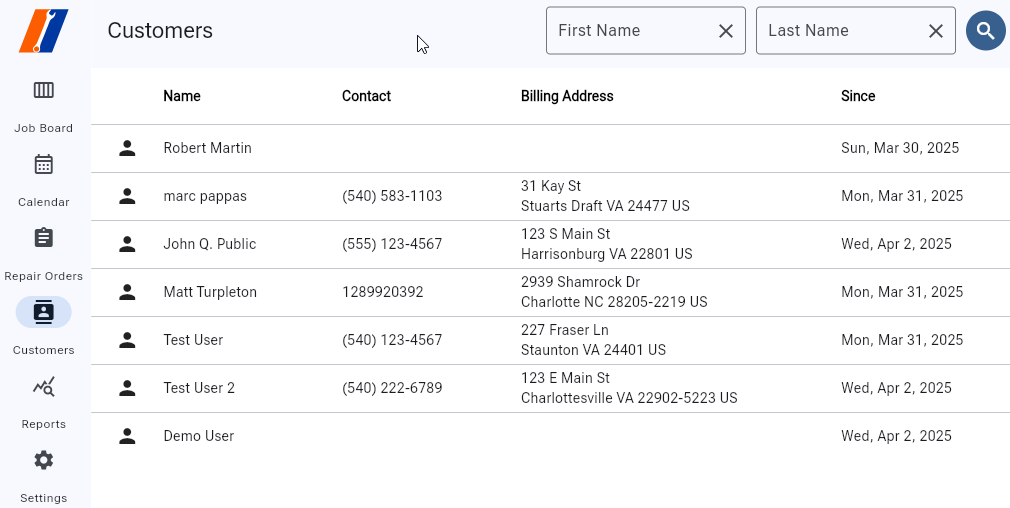
Customer Details
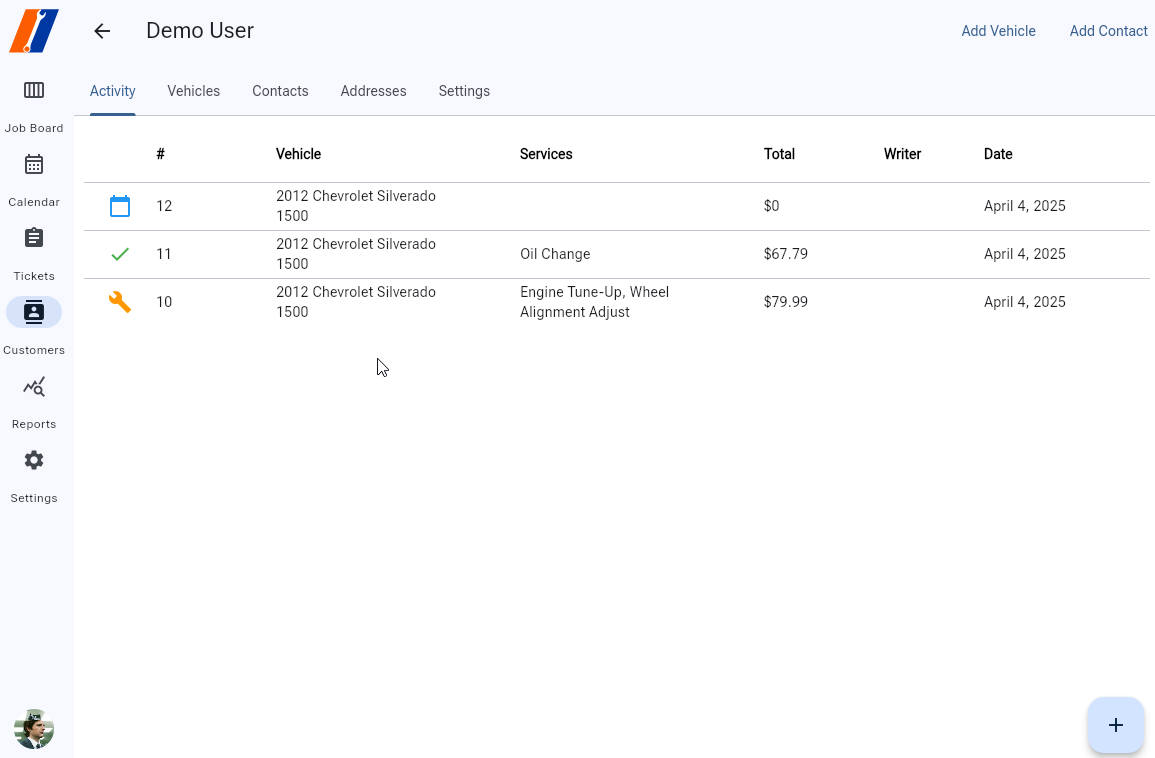
Once you have found your customer, you click their record and it opens the Customer Details screen. This page has several tabs along the top:
Activity: This tab shows all of your customers activity history for your shop. In the example below, you can see this customer has had their vehicle in twice, with one completed invoice, and one still in repair.
Vehicles: Vehicles your customer has brought in for service. With their plate YMM, Engine, and VIN and/or Plate if entered.
Contacts: Customer contact information. Phone, Email.
Addresses: Addresses associated with your customer.
Settings: Options associated with a customer. For example, their preference for SMS notification updates for services and approvals, etc.
Also along the top of the page, in the upper right corner, are the ‘Add Vehicle’ and ‘Add Contact’ buttons. These are used to add additional entries to those tabs.
Customer History
When viewing a customer’s history, you can see icons next to each Ticket indicating it’s status:
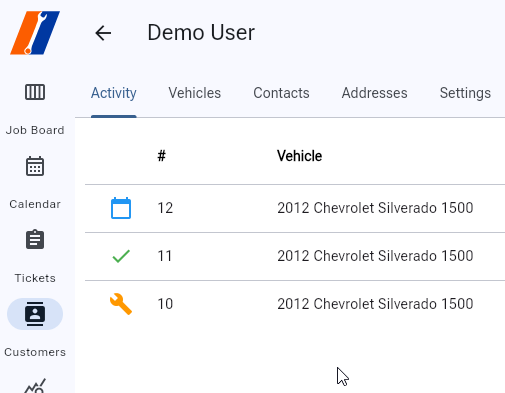
Blue Ticket: These are incompleted tickets sitting in the system, that can be re-opened and completed.
Orange Wrench: This is a ticket that is current on your Job Board as an In-Progress status.
Green Checkmark: These are completed invoices that are finalized and Paid.