Inspections
The Inspections Settings page allows you to create and manage vehicle inspection templates for standardized quality checks and compliance with state regulations. This guide provides an overview of how to set up and utilize these inspections effectively.
Overview
The inspection system provides:
Customizable inspection templates
Category-based organization
Pass/fail/caution criteria
Photo documentation support
Template library for quick setup
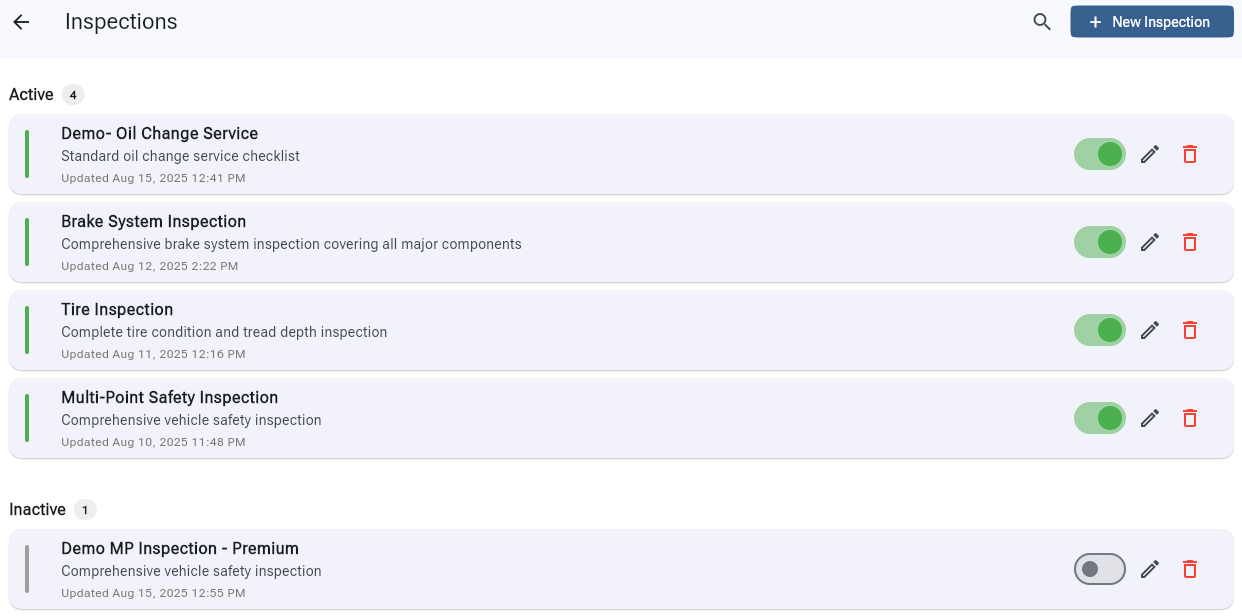
Creating an Inspection
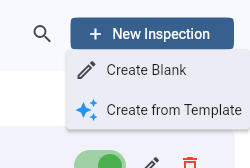
Custom Inspection
Click New Inspection → Create Blank.
Enter inspection details:
Name (required)
Description (optional)
Active status
Click Create to save.
Click on the inspection to add categories.
From Template
Click New Inspection → Create from Template.
Browse available templates.
Select desired template.
Customize name if needed.
Click Use Template.
Building Inspection Structure
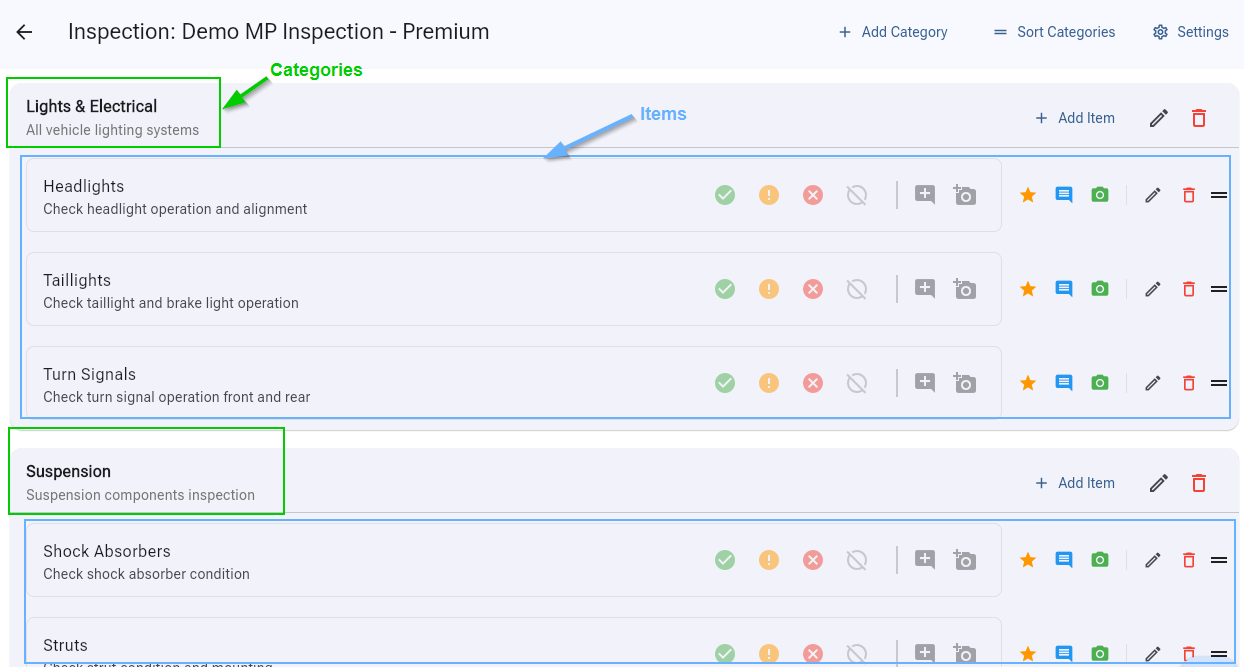
Adding Categories
Click an inspection to open it.
Click Add Category.
Enter category name:
Example categories include:
Engine Compartment
Undercarriage
Interior
Exterior
Click Add button to save the category.
Adding Inspection Items
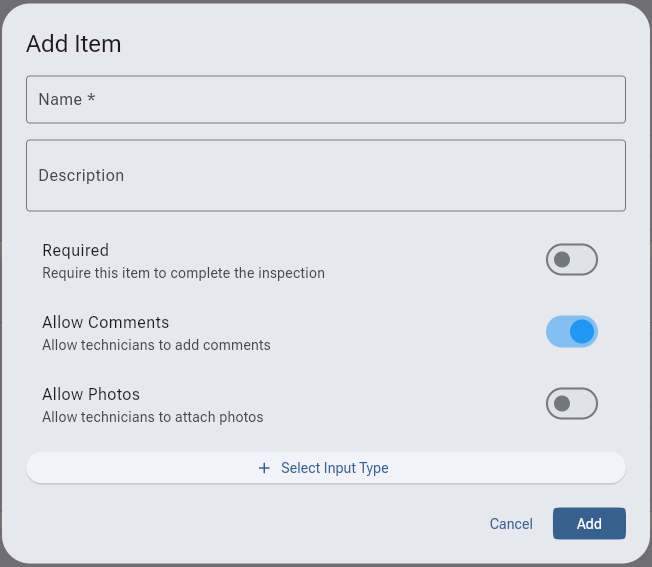
Select a category.
Click Add Item.
Configure the item:
Item name
Description
Required status toggle
Allow Comments toggle
Allow Photos toggle
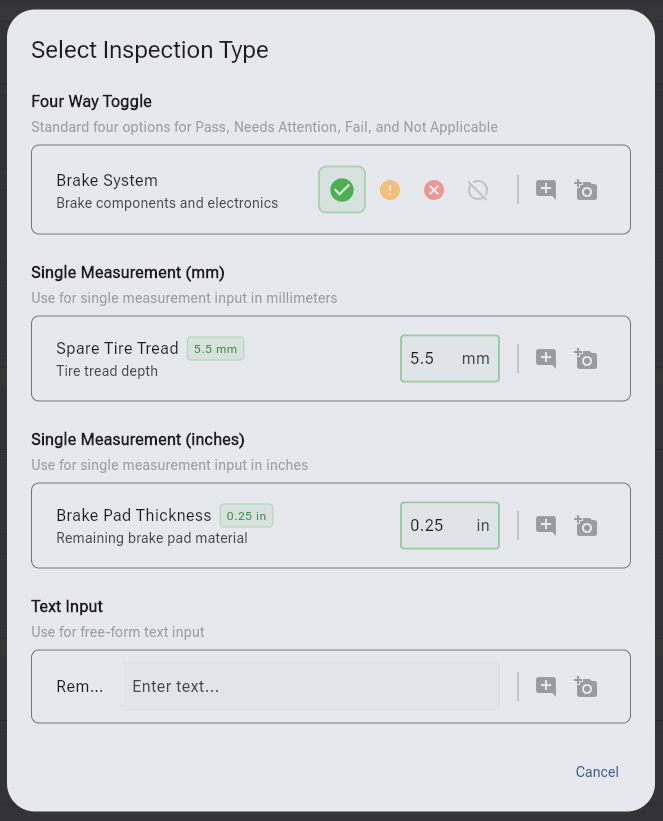
Click + Select Input Type to choose:
Four Way Toggle
Single Measurement (mm)
Single Measurement (inches)
Text Input
Save the item.
Managing Inspections
Editing Inspections
Click the edit icon or inspection card.
Navigate to the inspection editor.
Modify categories and items.
Changes save automatically.
Activating/Deactivating
Toggle switch on the inspection card.
Inactive inspections are unavailable for use.
Preserves all configuration.
Deleting Inspections
Click the delete icon.
Confirm in the dialog.
Note: Check for usage first.
Inspection Editor
Category Management
Drag to reorder categories.
Expand/collapse for focus.
Bulk edit items.
Delete unused categories.
Item Configuration
Set measurement units.
Define acceptable ranges.
Add help text for technicians.
Configure customer visibility.
Best Practices & Suggestions
Inspection Template Design
Comprehensive Coverage: Include all critical systems.
Logical Flow: Order matches inspection route.
Clear Criteria: Define specific pass/fail conditions.
Customer Focus: Include items customers understand.
Technician Friendly: Add guidance and tips.
Category Organization
Standard Categorie Suggestions
Under Hood
Undercarriage
Brakes
Suspension
Tires & Wheels
Exterior Lights
Interior Controls
Fluid Levels
Battery & Electrical
Exhaust System
Visual Inspections
“Good”, “Fair”, “Poor” ratings.
Photo documentation encouraged.
Clear failure indicators.
Measurements
Specify units (mm, inches, PSI).
Set minimum/maximum thresholds.
Include factory specifications.
Functional Tests
Pass/Fail only.
Step-by-step procedures.
Safety considerations.
Quality Assurance
Standardization: Use consistent terminology.
Training Materials: Document inspection procedures.
Compliance: Include regulatory requirements.
Common Inspection Types
Multi-Point Inspection
25-50 inspection points.
General vehicle health.
Customer education tool.
Upsell opportunities.
Pre-Purchase Inspection
Comprehensive evaluation.
Detailed measurements.
Photo documentation.
Written report generation.
State Safety Inspection
Regulatory compliance.
Pass/fail only items.
Official forms integration.
Renewal tracking.