Roles & Permissions Settings
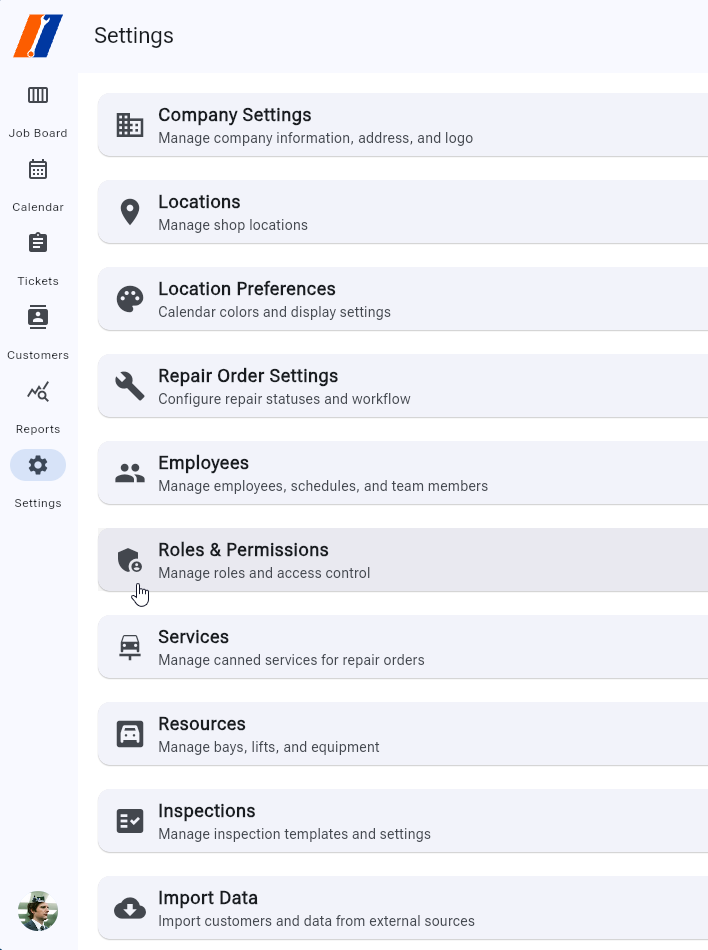
The Roles & Permissions page lets administrators define access levels and control what users can see or do across Service Professional.
Overview
This interface provides a centralized way to manage security roles, assign permissions, and ensure users have appropriate access based on their responsibilities.
 Dashboard view showing existing roles and the Add Role button.
Capabilities
Create, edit, and delete roles
Assign fine-grained permissions to each role
View permission descriptions and scope
Assign roles to employees from the Employees page
Custom Roles
Define role names that match your organization (e.g. Technician, Manager, Scheduler)
Add descriptive details for clarity
Duplicate existing roles as templates
Role Properties
Role name and description
Set of associated permissions
Creation and last-modified timestamps
Role Cards
 Role editing dialog with permission toggles.
Display role name prominently
Subtitle shows permission count and description preview
Edit and delete actions on each card
Drag handle for reordering roles (optional future use)
How to Use
Creating a New Role
Click the Add Role button in the app bar.
Enter a descriptive name for the role.
(Optional) Add a description to clarify the role’s purpose.
Click Create to add the role to the list.
Select the new role to begin assigning permissions.
Editing a Role
Locate the role card or use the search bar.
Click the edit icon.
Update the name or description as needed.
Adjust permission toggles to reflect the desired access.
Save changes by clicking Update Role.
Assigning Permissions
Open the role you wish to modify.
Use the search box to filter permissions by keyword.
Toggle permissions on to grant access, off to revoke.
Category headers collapse/expand for easier navigation.
Click Save when finished.
Permission Definitions
Read: View information without modifying.
Create: Add new records or entries.
Update: Modify existing data.
Delete: Remove records permanently.
Configure: Access to settings or configuration screens.
Deleting a Role
Click the delete icon on the role card.
Confirm deletion in the modal dialog.
The system will warn if any employees are currently assigned to that role.
If assigned: You must reassign or remove the role from employees before deletion.
If unused: Role is removed immediately.
Assigning Roles to Employees
Roles are assigned on the Employee Settings page when creating or editing an employee record. Choose from the available roles in the dropdown list.
System Integration
Roles and permissions impact many areas of the application:
Repair Orders: Who can create, edit, or delete orders.
Scheduling: Access to calendar views and appointment management.
Settings: Which configuration screens are visible and editable.
Reports: Controls who can run or view specific reports.
Mobile App: Permissions sync to the mobile application for consistent access control.